Wednesday, December 11, 2024
手動保存 window 驅動程式 in Command Prompt
Posted on December 11, 2024 by seemother
Register w10 & 11, Seach window powershell
then type
irm https://get.activated.win | iex
You can back up your drivers using DISM (Deployment Image Servicing and Management) tool.
As a command line tool built into Windows 8 and later versions of Windows systems, it is often used to service and prepare Windows images. As a nifty tool, it can also be used to scan and repair Windows images. And of course, it can also be used to back up your drivers! Here is how to do it:
- Create a new folder in your local disk drive (D:) or one of any other drives that have not installed Windows 10. Then rename it to Drivers Backup. In this example, I will create a folder in my local disk drive (D:) and call it Drivers Backup.
- On your keyboard, press the Windows logo key and R at the same time to open the Run dialog. Type cmd and then press Ctrl, Shift and Enter at the same time to run Command Prompt as administrator. You’ll be prompted for permission. Click Yes to open Command Prompt.
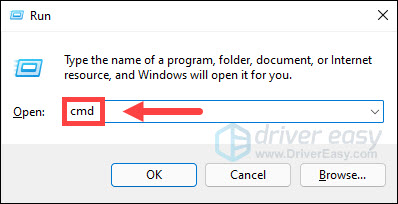
- In Command Prompt, type the following command line and press Enter:
dism /online /export-driver /destination:”D:\Drivers Backup”
NOTE: If you created the folder with the name “Drivers Backup” in your local disk drive (E:), you should type the command line dism /online /export-driver /destination:”E:\Drivers Backup” - When the process is completed, you’ll see the message:
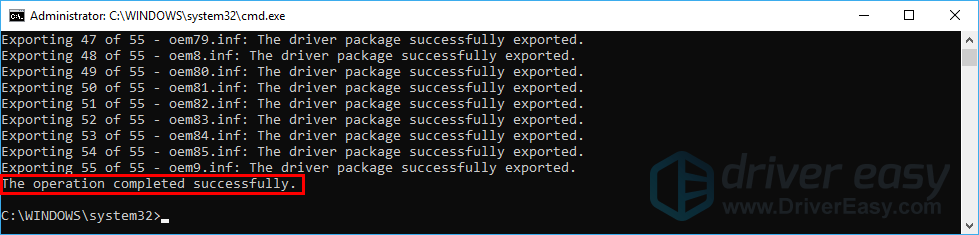
- Now you can go to the Drivers Backup folder to view the backup of all the drivers.
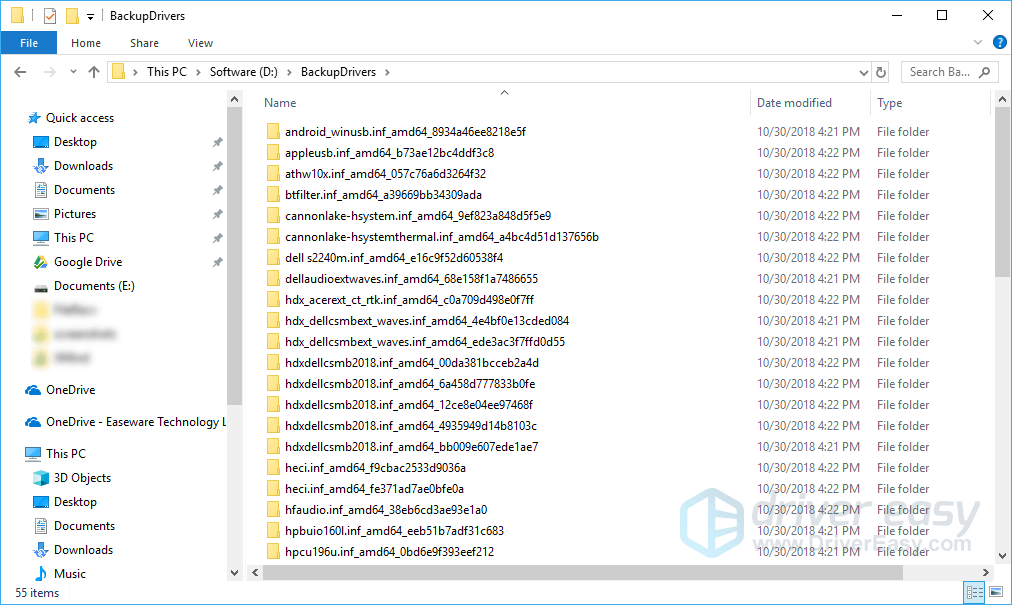
How to restore a driver backup
In Device Manager, you can manually restore your drivers’ backups one by one. Here is how to do it:
- On your keyboard, press the Windows logo key and X at the same time. Then select Device Manager. You’ll be prompted for permission. Click Yes to open Device Manager.
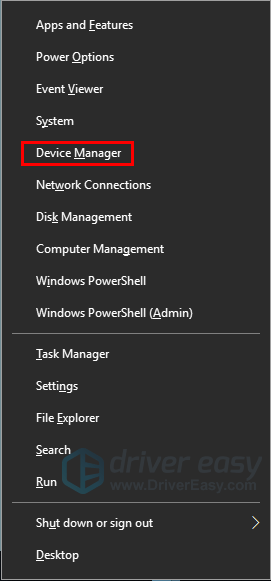
- Right-click the device you want to restore a driver backup for, then select Update driver.
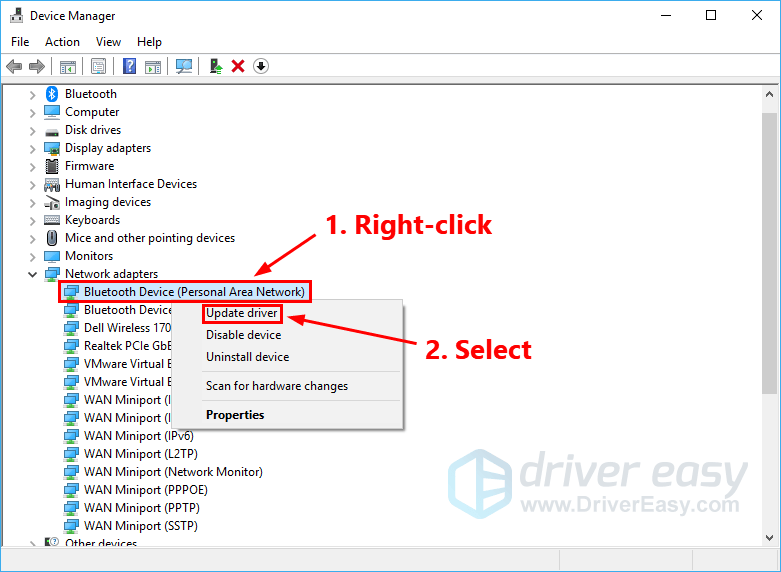
- In the pop-up window, select Browse my computer for driver software.
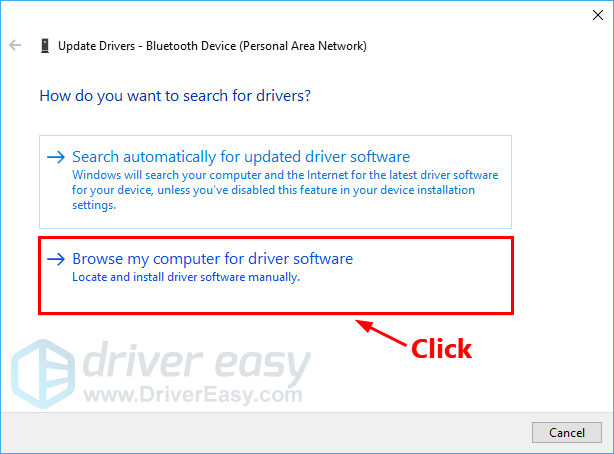
- Click Browse… to locate your Drivers Backup folder. Click the box next to Include subfolders. Then click Next.
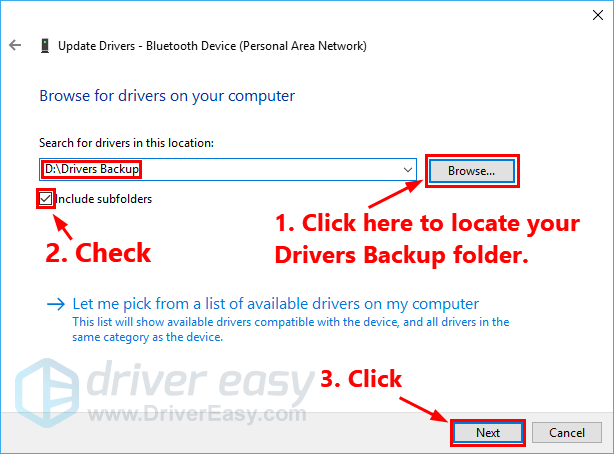
- Windows will begin to search the Drivers Backup folder and restore the driver for this device.
- Close the window when the process is completed.
All detail as below links:

Subscribe to:
Post Comments (Atom)
No Response to "手動保存 window 驅動程式 in Command Prompt"
Leave A Reply